Technical Notes
ComfyUI with Stable Diffusion: Beginner’s Guide
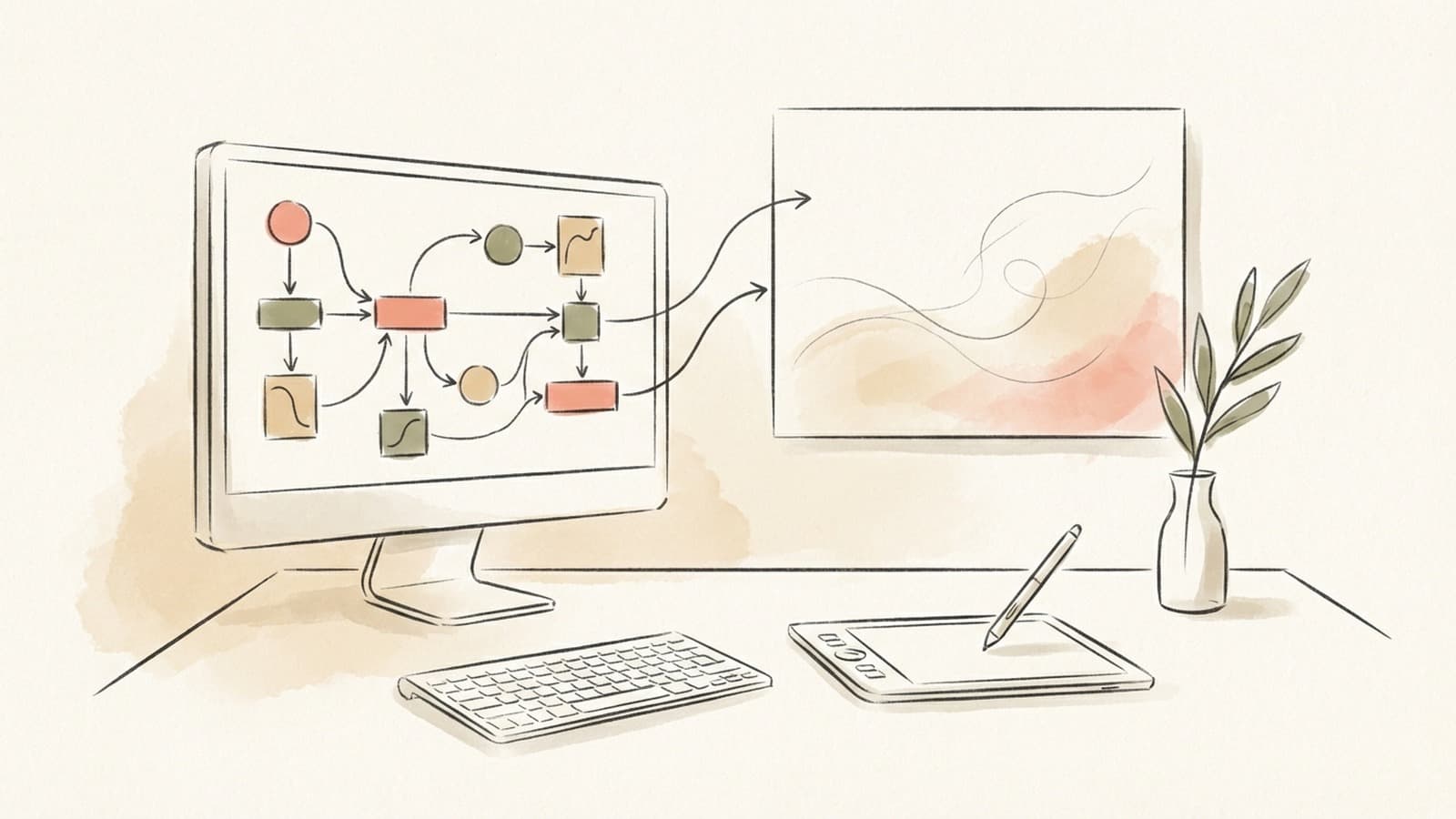
ComfyUI is a node-based GUI for Stable Diffusion that lets you build image-generation workflows visually. This guide will walk you through installing ComfyUI and Stable Diffusion on your local machine, understanding key concepts (models, prompts, checkpoints, LoRAs), exploring popular use cases, creating a basic image generation workflow, and troubleshooting common issues. Let’s get started!
1. Installation and Setup
Before diving into image generation, you need to install ComfyUI and ensure you have a Stable Diffusion model (checkpoint) on your computer. ComfyUI supports Windows, Mac, and Linux. Below are the system requirements and step-by-step installation instructions for Windows and Mac (Apple Silicon).
System Requirements and Dependencies
- GPU: A dedicated GPU with at least 4 GB VRAM (video memory) is recommended. NVIDIA GPUs (RTX 3060 or higher) work best for full performance. (GPUs with less than 4 GB VRAM can run in a special low VRAM mode, but generation will be slower.)
- CPU: It’s possible to run on CPU-only if you don’t have a compatible GPU, but it will be very slow (use the
--cpuflag to force CPU mode). - Memory: At least 8 GB of RAM is recommended for smooth operation.
- Operating System: Windows 10/11 or macOS (12.3+ for M1/M2 Apple Silicon support) are supported. Linux can also work (similar to macOS steps).
- Storage: An SSD with at least 20-40 GB free is advised to store models and for faster loading.
- Software: A Python environment (Python 3.10 or 3.11) with libraries like PyTorch and others is required if installing manually. (The Windows portable version includes these dependencies, simplifying setup.)
Installing ComfyUI on Windows (Portable Installation)
Step 1: Download ComfyUI Portable. The easiest way on Windows is to use the pre-built portable version of ComfyUI. Go to the ComfyUI page and download the latest ComfyUI_windows_portable_nvidia_cu118_or_cpu.7z file. This file contains a ready-to-run ComfyUI for NVIDIA GPUs (CUDA 11.8) or CPU.
Step 2: Install 7-Zip (if not already installed). The ComfyUI download is a .7z archive, so you’ll need 7-Zip or a similar tool to extract it. Install 7-Zip, then right-click the downloaded file, go to 7-Zip > “Extract Here” to unpack it. After extraction, you should get a folder named ComfyUI_windows_portable. You can move this folder to any convenient location (e.g., C:\ComfyUI\).
Step 3: Download a Stable Diffusion model checkpoint. ComfyUI does not include a Stable Diffusion model by default – you need to provide one. You can use any Stable Diffusion .ckpt or .safetensors file (for example, the official SD1.5 model or community models like DreamShaper). For a quick start, you might download the DreamShaper 8 model from HuggingFace. Once you have a model file, place it into the ComfyUI_windows_portable\ComfyUI\models\checkpoints\ folder. (You can put multiple model files in this folder and switch between them in ComfyUI.)
Step 4: Launch ComfyUI. In the ComfyUI_windows_portable folder, you’ll find startup scripts:
- If you have an NVIDIA GPU, double-click
run_nvidia_gpu.bat. This will launch ComfyUI with CUDA acceleration. - If you don’t have a compatible GPU, double-click
run_cpu.bat(be aware that this will be very slow).
A command prompt will open and initialize the backend. After a few moments, your web browser should automatically open a local ComfyUI interface (usually at http://127.0.0.1:8188 by default). You are now ready to use ComfyUI!
Step 5: (Optional) Updating ComfyUI. If you want to update to the latest version later, the portable package includes an updater. Simply run update_comfyui.bat in the ComfyUI_windows_portable\update\ folder to fetch and apply updates.
Installing ComfyUI on macOS (M1/M2 Apple Silicon)
Running ComfyUI on a Mac with Apple Silicon requires a bit more setup, as you’ll be installing it from source. These steps assume you have an M1 or M2 Mac (or even an Intel Mac, though performance on Intel CPU will be slow). Ensure you have macOS 12.3 or higher to use Apple’s GPU (Metal/MPS) acceleration.
Step 1: Install Homebrew. Homebrew is a package manager for macOS that will help install dependencies. If you don’t have it, open the Terminal app and install Homebrew by copying this command and pressing Enter:
/bin/bash -c "$(curl -fsSL https://raw.githubusercontent.com/Homebrew/install/HEAD/install.sh)"
(See Homebrew’s official site brew.sh for more details.)
Step 2: Install required packages via Homebrew. In Terminal, run:
brew install cmake protobuf rust [email protected] git wget
This installs essential tools: CMake (build tool), Protobuf, Rust (for some extensions), Python 3.10 (even if you have 3.11, having 3.10 ensures compatibility), Git, and Wget. After installation, verify your Python version with python3 --version. It should be 3.10.x (Python 3.11+ also works in recent ComfyUI).
Step 3: Download the ComfyUI code. Use Git to clone the ComfyUI repository. In Terminal, navigate to the folder where you want ComfyUI installed (for example, cd ~/Documents), then run:
git clone https://github.com/comfyanonymous/ComfyUI.git
This will create a folder named “ComfyUI” with the program code.
Step 4: Set up a Python virtual environment (recommended). Navigate into the new ComfyUI folder (cd ComfyUI). Create a virtual environment to isolate ComfyUI’s Python libraries:
python3 -m venv venv
After creation, activate the virtual environment. On macOS/Linux, run: source venv/bin/activate. (This step is optional but helps avoid conflicts with other Python software on your system.)
Step 5: Install PyTorch and dependencies. With the virtual environment activated, install PyTorch and other required libraries. For Apple Silicon, it’s recommended to install PyTorch Nightly (latest) for better GPU support. You can install the stable version first for simplicity:
pip install torch torchvision torchaudio
This will download a version of PyTorch that uses Apple’s Metal Performance Shaders (MPS) for GPU acceleration on M1/M2. Next, install the remaining dependencies required by ComfyUI by running:
pip install -r requirements.txt
(This reads the requirements.txt file in the ComfyUI folder and installs needed Python packages). If the requirements.txt installation fails or if you plan to use advanced features, ensure you also have transformers, diffusers, and other SD-related packages up to date.
Step 6: Launch ComfyUI. Start the interface by running the main script:
python main.py
This will start ComfyUI’s server. After a few seconds, you should see output indicating it's running. Open your web browser and go to http://127.0.0.1:8188 (or a different port if specified) to access the ComfyUI web interface. From here, the usage is the same as on Windows. (Tip: If you plan to run ComfyUI frequently, you can create a desktop shortcut or shell alias for the launch command. Leave the Terminal open while ComfyUI is running.)
Note (Linux): Installing on Linux is very similar to the macOS steps. Make sure you have Python 3.10+, and use package managers (apt, yum, etc.) to install dependencies like git, Python dev libraries, CUDA (for NVIDIA GPUs), etc. You can then clone the repo, create a virtual env, install PyTorch (use the correct CUDA pip install command for your GPU), install requirements.txt, and run python main.py. Linux NVIDIA users should install the CUDA-enabled PyTorch wheel (see PyTorch website for the appropriate pip install torch ... command for Linux + CUDA). AMD GPU users on Linux can try ROCm PyTorch wheels, though this is advanced. In short, follow the official ComfyUI GitHub instructions for manual installation on Linux (which mirror the above steps).
Now that ComfyUI is installed and running, let’s understand the basics of Stable Diffusion models and how ComfyUI’s workflow operates.
2. Understanding Models and Workflows
ComfyUI’s node system might seem complex at first, but it actually mirrors the components of Stable Diffusion. Here we introduce key concepts you should know and how they fit into the ComfyUI workflow.
-
Stable Diffusion Model (Checkpoint): Stable Diffusion is a latent text-to-image diffusion model – in simple terms, it’s an AI model that can generate photo-realistic images from text prompts. The model itself is typically provided as a checkpoint file (e.g.
model.ckptormodel.safetensors) which contains the pre-trained neural network weights. In ComfyUI, you load this file using the Load Checkpoint node, which makes the model available for generating images. The checkpoint includes the core U-Net (the part that does image diffusion) and often references to a text encoder and VAE (see below). Tip: There are many different checkpoints available (such as artistic styles, realistic photography models, anime models, etc.). You can swap the checkpoint in ComfyUI to experiment with different styles or capabilities. Without a checkpoint model, ComfyUI can’t generate images, so make sure you have one loaded. -
Prompts (Text Inputs): A prompt is the text description you provide to guide the image generation (e.g. “a castle on a hill at sunset, in watercolor style”). Stable Diffusion uses a text encoder (part of the model, usually CLIP) to convert your prompt into a numerical representation. ComfyUI allows you to input a positive prompt (what you want in the image) and an optional negative prompt (what you want to avoid). These are handled by the CLIP Text Encode node, which turns the prompts into embeddings (high-dimensional vectors that capture the meaning of the text) (MimicPC). The positive prompt encourages certain content in the output, while the negative prompt helps steer the model away from unwanted elements (for example, you might put “blurry, low quality” in the negative prompt to avoid those traits). In the ComfyUI interface, you’ll typically see fields or nodes for entering these prompts. The CLIP Text Encoder node takes the text and produces an encoded representation that the diffusion model will use to guide image generation.
-
Diffusion Process (Sampling): Stable Diffusion generates images through an iterative process of denoising. It starts with random noise and refines it step by step into an image that matches the prompt. In ComfyUI, this process is represented by the KSampler node (also sometimes called a sampler). The KSampler takes the model (from the checkpoint), the text embedding (from the CLIP encoder), and a starting latent image (noise), then iteratively refines the latent image according to the prompt (MimicPC). You can configure parameters like the number of steps (how many iterations), the sampler method (e.g. Euler, DDIM, etc.), and the random seed in the KSampler. Essentially, the KSampler is the core “workhorse” that runs the Stable Diffusion algorithm to produce a latent representation of the final image.
-
Latent Image & VAE: Stable Diffusion operates in a latent image space (a compressed representation of images). The model doesn’t generate pixels directly; it generates a latent (like a rough draft) which then needs to be converted to an actual image. The VAE (Variational Autoencoder) is the component that shuttles between latent space and pixel space. It has two parts: an encoder that can turn an image into a latent, and a decoder that turns a latent into an image. In practice, for image generation we use the decoder. In ComfyUI, the checkpoint’s associated VAE is loaded along with the model (some checkpoints have a built-in VAE, or you can provide a separate
.vae.ptfile in themodels/vaefolder). The VAE Decode node (or just using the VAE output from Load Checkpoint) will take the final latent from the KSampler and convert it into an actual image file. The VAE helps produce higher fidelity images and colors. Note: The Load Checkpoint node in ComfyUI typically provides three outputs – the Model (diffusion U-Net), the CLIP encoder, and the VAE – corresponding to the stable diffusion pipeline (MimicPC). These get connected to other nodes in the workflow. The VAE is crucial for getting a viewable image; without decoding, you’d just have latent data. -
LoRA (Low-Rank Adaptation): LoRAs are add-on model components that allow you to fine-tune or modify the behavior of a base model without having to load a whole new checkpoint. A LoRA file is usually much smaller (tens of MB) and can be “applied” on top of the main model to give it a certain style or teach it a new concept. For example, a LoRA might make the model generate images in the style of a particular artist, or enable it to render a specific character or object it couldn’t before. Technically, LoRA works by injecting a set of additional weights into the model, focusing on certain layers (hence low-rank adaptation of the large model). It’s a way to fine-tune models efficiently. In ComfyUI, you can use a Load LoRA node to apply a LoRA to your checkpoint model. Typically, you’d connect the LoRA node to the main model node so that the KSampler uses the combined weights. LoRA nodes often have a strength slider, so you can control how strongly the LoRA influences the output (e.g., 0.5 for a subtle effect, 1.0 for full effect). You can load multiple LoRAs at once for mixing styles or concepts. Example: If you have a realistic checkpoint but want an anime style, you could apply an “anime style LoRA” on top of it in the workflow, rather than switching to a completely different model. This modularity is one of the strengths of ComfyUI’s design.
-
ComfyUI’s Node-Based Workflow: Instead of a one-click interface, ComfyUI uses a graph of nodes to represent the image generation pipeline. Each node is a building block (such as “Load Checkpoint”, “CLIP Text Encode”, “KSampler”, “VAE Decode”, etc.) that performs a specific function, and edges (wires) connect the output of one node to the input of another (MimicPC). This may remind you of flowcharts or node editors in tools like Blender or Unreal Engine. The node system might seem intimidating, but it offers flexibility: you can customize the workflow, insert additional processes (like image filters or control mechanisms), and see exactly how the data flows. For beginners, ComfyUI provides a default workflow that already wires up the basic nodes for text-to-image generation. You can use it as is, or modify it. The key components (as mentioned) are:
- Load Checkpoint (loads your model and provides Model, CLIP, VAE outputs) (MimicPC).
- Text Encoder (CLIP) (takes your prompt text and outputs text embeddings) (MimicPC).
- Empty Latent Image (creates an initial noise latent of specified dimensions as starting point) (MimicPC).
- KSampler (performs the diffusion, outputs a refined latent or final image) (MimicPC).
- VAE Decode (converts the final latent to an image).
- Image Output/Save (displays or saves the resulting image file).
These nodes are connected: the Model and VAE from Load Checkpoint go into the KSampler and decoder nodes, the text embeddings from the Text Encoder go into KSampler to guide it, and the noise latent goes into KSampler to start the process. ComfyUI essentially lets you see and control each step of Stable Diffusion’s pipeline. For example, you could intercept the latent mid-way, apply some change, then continue, or plug in an initial image instead of pure noise for image-to-image generation (more on that later).
In summary, diffusion models, prompts, checkpoints, and LoRAs all come together in ComfyUI’s node graph. Don’t worry if this feels like a lot – next, we’ll look at concrete use cases and then walk through a basic workflow to tie it all together.
3. Popular Use Cases for ComfyUI + Stable Diffusion
Stable Diffusion (and ComfyUI) can be used for a wide variety of image generation tasks. Here are some of the most common applications and how ComfyUI facilitates them:
-
AI Art Generation (Text-to-Image): The classic use case – generate original artwork or images from a text description. This can range from abstract art to landscapes, characters, concept art, and more. ComfyUI shines here by allowing you to experiment with different models and prompts in a modular way. For example, you can create a fantasy landscape by prompting with “a mystical forest with glowing trees, cinematic lighting”, or generate concept art by describing it in detail. The flexibility of nodes means you can incorporate things like style LoRAs or prompt embeddings to refine the artistic style. Many artists use ComfyUI to orchestrate complex prompts and even multiple passes (e.g., generate a base image, then upscale it, then apply a filter) to get high-quality art.
-
Photorealistic Rendering: With the right model (checkpoint) and settings, Stable Diffusion can create images that look like real photographs. This includes human portraits, animals, interiors, landscapes, etc. ComfyUI allows you to load highly realistic models (like the SDXL, Realistic Vision, or Flux models) and generate images that could pass for real photos. For instance, you might prompt “a candid photo of a golden retriever playing in the park, shot on DSLR” and get a lifelike image. Photorealism often requires careful prompt crafting and sometimes using embeddings or LoRAs that enhance realistic details. ComfyUI’s interface lets you tweak the prompt and re-run quickly. You can also use post-processing nodes or upscalers to enhance realism (for example, adding a subtle depth of field or increasing resolution to add detail). The node workflow is useful for photorealism as you might incorporate face restoration or color correction nodes into your pipeline for better results.
-
Inpainting (Image Editing): Inpainting is the process of reconstructing or altering parts of an image by AI – essentially telling the model to fill in a hole or replace a region in an image. This is great for removing unwanted objects, restoring damaged photos, or making edits (like changing the content on a TV screen in an image). Inpainting with Stable Diffusion usually involves providing an input image and a mask (the mask marks the area to change). ComfyUI supports inpainting workflows: you can use an Image Load node to bring in an existing image, a Mask node (or simply an image node with alpha) to define the region, and then use a specialized Inpaint node or a modified KSampler that takes the image and mask as input. The model then generates new content in the masked area that blends with the rest of the image. This feature enables seamless editing, as the model tries to make the filled area look natural with respect to the context (Wiki). Example: If you have a photo with an unwanted person in the background, you can mask them out and prompt “trees and sky” to fill that area – the inpainting will replace the person with surrounding scenery as if they were never there. ComfyUI’s node graph makes it clear how the original image and mask flow into the model for inpainting.
-
Upscaling (Super-Resolution): AI upscaling means taking a smaller or lower-quality image and increasing its resolution (and sometimes enhancing details) without simply making it blurry. Stable Diffusion can be used to upscale images by generating additional details, often through a technique called latent upscaling or using dedicated upscaler models. In ComfyUI, you might use an Upscale node or a combination of nodes (like tiling an image into parts, running each through a diffusion upscaler, then stitching back together). There are also custom nodes/community models like 4x-UltraSharp or Ultimate SD Upscale that can be integrated (ssitu). Upscaling is typically done after you get a good base image: for example, you generate a 512x512 image, then use an upscaler to make it 1024x1024 or 2048x2048 with added detail. ComfyUI can automate this by linking the output of a generation step into an upscaling step. This way, you don’t have to use a separate tool for upscaling – it’s part of your workflow graph. The result is higher-res images that maintain quality (useful if you want to print the image or zoom in on details). Keep in mind upscaling can be memory-intensive, so you may need to crop or tile large images.
-
Style Transfer and Mixing: Style transfer involves applying the style of one image or art genre to the content of another image. With Stable Diffusion, one way to do this is by using textual style cues or specialized models/LoRAs that capture a style. For example, you might want to render a photo in the style of Van Gogh’s paintings. ComfyUI can achieve this by either:
- Using a LoRA or checkpoint trained on Van Gogh style, or
- Using a reference image’s style via a node (there are advanced techniques like Style Adapter or IPAdapter plugins). For instance, the IPAdapter+ extension allows you to input a reference image and have the generated image mimic its style (ComfyUI).
In simpler terms, you can mix styles by combining prompts and LoRAs. ComfyUI’s node flexibility even lets you do multi-step workflows: generate an image with one style, then feed it (image-to-image) with a different prompt to change style, etc. This modular approach is very powerful for style transfer experiments. For beginners, an easy way to do style transfer is to just prompt “in the style of [artist or genre]” in your prompt. But as you get more comfortable, using LoRAs or control nodes for style gives more consistent results.
These use cases can be combined. For example, you might generate a photorealistic base image, then inpaint certain parts, then upscale it for a final high-res result. ComfyUI is particularly suited for such composable workflows – you’re not limited to a linear process; you can branch and merge processes in the node graph. In the next section, we’ll walk through a basic text-to-image generation workflow in ComfyUI, which is the foundation that you can then extend for things like inpainting or upscaling.
4. Basic Workflow Tutorial (Text-to-Image)
Let’s create an image step-by-step using ComfyUI’s node-based interface. This simple tutorial will generate an image from a text prompt. By doing this, you’ll learn the basic controls and how nodes connect. Make sure you have ComfyUI running and a model checkpoint loaded (from Section 1).
Step 1: Open ComfyUI and familiarize yourself with the interface. When ComfyUI is running (web interface open in your browser), you should see a blank canvas or a default workflow graph. At the top, there’s a toolbar with buttons like “Queue Prompt”, “Save”, “Load”, “Refresh”, “Clear”, etc. (MimicPC). The canvas is where nodes will appear. You can zoom in/out with the mouse wheel and drag with right-click to navigate (MimicPC). If a default workflow is already present (which usually includes a Load Checkpoint node, etc.), you can use that; otherwise, we will add nodes manually.
Step 2: Load your Stable Diffusion model. If the Load Checkpoint node is not already on the canvas, add one:
- Click the “+” or right-click on the canvas to open the node menu (in ComfyUI, right-click brings up a list of available nodes). Find “Load Checkpoint” and add it.
- On the Load Checkpoint node, there will be a dropdown or selector for the model file. Click it and choose the checkpoint (model) you downloaded (e.g.,
dreamshaper_8.safetensorsorv1-5-pruned.ckpt). The node will then show the name of the model and typically has output ports for “Model”, “Clip”, and “VAE”. Note: The Load Checkpoint node essentially loads the diffusion model into memory (MimicPC). You need this in place before generation.
Step 3: Add a Text Encoder node for your prompt. We need to input our text prompt. In ComfyUI, the CLIP Text Encode node is used to convert text into embeddings:
- Add a “CLIP Text Encode” node (it might also be called “CLIP Text Encoder”). This node will have an area where you can type text or it might expect connections from separate text nodes. In the latest ComfyUI, you can double-click the CLIP Text Encode node to edit the prompt, or you might have two small text nodes by default labeled something like “Positive Prompt” and “Negative Prompt” connected to it (MimicPC).
- Enter your positive prompt (the description of what you want). For example, type: “a cozy cabin in the woods during winter, golden sunlight, highly detailed painting”. This is just an example – feel free to use any prompt you like.
- Enter a negative prompt (optional). This can help remove unwanted elements. For example: “low quality, blurry, humans” if you want to avoid people in the scene. Negative prompt is not required, but it often improves results by telling the model what not to do.
- Make sure the CLIP Text Encode node is configured to use the CLIP output from your model. Usually, the Load Checkpoint node’s “CLIP” output should be connected to an input on the CLIP Text Encode node (some ComfyUI versions handle this automatically if you use default nodes). If not, connect them: drag a connection from Load Checkpoint’s CLIP output to the CLIP Text Encode node’s Clip input. This ensures the text encoder uses the right language model associated with your checkpoint.
Step 4: Add an Empty Latent Image (Noise) node. This node provides the starting noise image (latent) that will be transformed into your final image:
- Add a node called “Empty Latent Image” or similar. In some UIs it might be under a category like “latent” or named “Noise”. This node usually requires width, height, and sometimes a seed.
- Set the width and height for your image. Common default is 512x512 pixels. Make sure these dimensions are multiples of 8 (since stable diffusion operates on 8x8 patches) (MimicPC). For example, 512 is fine (as 512/8 = 64). Avoid very large sizes like 1024x1024 on a 4GB GPU, as that might exceed memory.
- Set the seed if you want a deterministic output (the seed is a number that initializes the noise; using the same seed and prompt will give the same image every time). If you leave it random, you’ll get a different image each run, which is fine for experimentation.
Step 5: Add the KSampler node. The KSampler will do the diffusion work:
- Add “KSampler” (it might be under a category like “Sampling” or simply called “Sampler”). This node has multiple inputs: typically it needs the Model (U-Net), the latent image, the text conditioning (embedding), and possibly the VAE if it’s going to output an image directly.
- Connect the inputs:
- Model: Drag a wire from the Model output of the Load Checkpoint node into the model input of the KSampler. This provides the diffusion model weights to the sampler.
- Latency / Noise: Connect the Empty Latent Image’s output to the KSampler’s latent input (this gives the initial noise to start from).
- Conditioning: Connect the output of the CLIP Text Encode node to the KSampler’s conditioning or text input. This feeds the text prompt embedding into the sampler, so it knows what to generate.
- VAE: Some KSampler nodes have an option to connect the VAE if they directly produce an image. If your KSampler has an input for VAE (or decoder), connect the VAE output from Load Checkpoint to it. If not, no worries – we will use a separate VAE decode node.
- Configure the KSampler settings: On the KSampler node, you can usually set parameters:
- Sampling method (e.g., Euler a, LMS, DPM++2M, etc. – these are different algorithms for denoising; “Euler a” or “DPM++ 2M Karras” are good choices to start).
- Steps: number of iterations. Try around 20–30 for testing, and you can increase to 50+ for higher quality (with longer generation time).
- CFG Scale: This is how strongly the prompt is followed (Classifier-Free Guidance scale). A typical value is around 7–12. If set too high, images might get distorted; too low and the prompt might not be followed closely.
- Seed: The KSampler might also have a seed field; if so, ensure it matches the one from your latent node or set a new one (if not already handled by the latent node).
- The KSampler will iteratively refine the noise into an image latent based on your prompt (MimicPC). Once it's done (when we execute the graph), it will output either a final latent or an image.
Step 6: Decode the latent to an image (if needed). If the KSampler doesn’t output an image directly, you need to decode the latent:
- Add a VAE Decode node (might be called “Decode latent to Image” or just use a “VAE” node configured to decode).
- Connect the latent output from KSampler to this node’s latent input.
- Connect the VAE (decoder) output from Load Checkpoint to this node as well (so it uses the correct decoder).
- The output of this node will be an image (in memory).
If your KSampler already had the VAE connected and outputs an image, you can skip adding a separate decode node. In some default workflows, KSampler will produce the image in one step if it knows about the VAE. Check the KSampler’s output: if it’s an image type (maybe shown as a small thumbnail or labeled as image), then you have the image. If it’s a latent (usually a matrix icon or something), then you decode as above.
Step 7: Add an Image Save/Display node. To view or save the generated image, ComfyUI uses output nodes:
- If not already present, add a “Save Image” or “Preview Image” node. This will take the image from the decoder and either save it to disk, display it in the UI, or both. The default workflow often has a Viewer that shows the image in the web UI once generated, and it automatically saves images to the
ComfyUI/outputfolder. - Connect the image output from the VAE decoder (or from KSampler if it outputs image) to the Save/Preview node’s input.
- You might be able to configure the save path or file name in this node (or it just auto-saves with a timestamp). By default, look for the output in
ComfyUI/outputdirectory after generation.
Now your basic graph is complete. The connections should flow something like: Checkpoint Model -> KSampler; Text -> CLIP -> KSampler; Noise -> KSampler; KSampler -> VAE decode -> Image output. It might look complex, but essentially it’s just telling the system: “Use this model to take noise and turn it into an image according to this text prompt.”
Step 8: Generate the image. Everything is set up. Now:
- Click the “Queue Prompt” button at the top of the interface. This will start the generation process (MimicPC). You should see some status or progress in the terminal or in a status bar (some UIs show which step out of the total is being processed).
- Wait for the process to complete the sampling steps. For ~512x512 image with 20 steps, it should only take a few seconds on a decent GPU (or longer if CPU).
- Once done, the resulting image will appear in the ComfyUI interface (often as a small thumbnail or in a gallery section on the side). You can click it to enlarge if the UI provides that feature. Also, check the
outputfolder – your image should be saved there (likely named with a timestamp or seed). - If the image is not to your liking, you can adjust the prompt, change seed, or tweak settings and hit “Queue Prompt” again to generate another. You can do this repeatedly to explore different outcomes.
Example: Suppose we used the prompt about a cozy winter cabin. After generation, we might get an image of a snow-covered log cabin with warm light in the windows, surrounded by trees and snow, with golden sunlight as specified. If we see something off (say an unwanted object or too much glow), we could add those to the negative prompt and re-run to try again.
Step 9: Save or refine as needed. If you used a Save Image node, the image file is already saved. If not, you can right-click the image in the UI to save it manually. From here, you can also extend the workflow:
- You could attach an Upscale node after the image to increase resolution.
- You could feed the image into an Image Prompt node to do variations (image-to-image) or inpainting with a mask.
- You can also click “Save” on the top toolbar to save your whole workflow graph for future use. ComfyUI can export the workflow as a
.jsonor.png(with metadata) so you can load it later or share with others.
Congratulations! You’ve completed a basic ComfyUI workflow and generated an image. You’ve learned how to load a model, input prompts, connect nodes, and run the generation. The node graph for text-to-image typically remains the same structure; you only change the model or prompt or settings to get different results. As you grow confident, try adding new nodes for more advanced tasks (like conditioning on an image, using ControlNet for pose guidance, etc.). ComfyUI’s community shares many workflow examples that you can load and study.
In the final section, we’ll cover some common issues you might run into and tips to optimize performance.
5. Troubleshooting and Optimization
Getting everything to work can sometimes be tricky. Here are common issues beginners face with ComfyUI + Stable Diffusion, along with solutions and performance tips:
-
ComfyUI opens but I can’t see my model / “No checkpoint loaded”: This means the model wasn’t found by the Load Checkpoint node. Double-check that you placed the model file in the correct folder (
ComfyUI/models/checkpoints) and that the Load Checkpoint node is pointed to it. If you added a new model while ComfyUI is running, you may need to refresh the UI: click the Refresh button in the top bar to rescan model directories, or restart ComfyUI. After refresh, click the model dropdown again in the node – your new model should appear (ComfyUI). Ensure the model file extension is recognized (.ckpt,.safetensors, or.ptdepending on support). -
Out of VRAM / CUDA out of memory errors: If you get an error in the console like “CUDA out of memory” or the generation stops, your GPU ran out of VRAM. Solutions:
- Lower the image resolution or batch size: Try 512x512 instead of 768x768, or generate one image at a time (batch size 1) if you were generating multiple.
- Reduce sampling steps or complexity (though steps usually affect time more than memory).
- Enable low VRAM mode: You can launch ComfyUI with a flag for low VRAM usage. In the portable version, you might edit the
run_nvidia_gpu.batto add--lowvramor use a provided--lowvramscript. This will trade off some speed for lower memory use. It can help run on 2-3GB cards or allow slightly larger images on 4GB cards, but things will be slower. - Upgrade hardware: If you consistently hit VRAM limits, a GPU with more memory (8GB+ like RTX 3060 or higher) will significantly improve the experience.
- Use smaller models: Some checkpoints (especially SDXL or certain fine-tunes) are larger and use more VRAM. Using a pruned 2GB model or a 1.5 base model with half-precision (fp16) can reduce usage.
- Check for other GPU memory hogs: Ensure no other programs (games, other ML apps) are eating VRAM while you run ComfyUI.
-
Generation is extremely slow (and GPU isn’t being used): If you notice that generating even a 512x512 image with 20 steps is taking a long time (e.g., minutes per image) and your GPU isn’t active, it could be that ComfyUI is running on CPU instead of GPU. This often happens if PyTorch didn’t detect your CUDA installation or you installed the CPU version of PyTorch by mistake. If you see an error like “Torch not compiled with CUDA enabled” in the console, it means the GPU acceleration isn’t working. To fix this:
- Install the correct PyTorch: Make sure you have the CUDA-enabled PyTorch. For Windows with NVIDIA, the portable build usually includes it. But if you did a manual install, reinstall PyTorch with CUDA 11 or 12 support. For example, run
pip install torch torchvision torchaudio --extra-index-url https://download.pytorch.org/whl/cu118to get the CUDA 11.8 build. Choose the version matching your CUDA toolkit (check PyTorch’s website for the proper install command). - If you’re on a Mac M1/M2, PyTorch uses MPS (Metal Performance Shaders). It’s slower than NVIDIA GPUs but faster than CPU. Ensure you installed PyTorch 2.0+ which has MPS support. It might still be ~2-3x slower than an equivalent discrete GPU. You can try the PyTorch nightly build on Mac which may have performance improvements. To install nightly, use the command from Apple’s developer guide or PyTorch site.
- Check that ComfyUI is not forced to CPU: Make sure you didn’t accidentally launch with
--cpu. Use the GPU launch script if you have a GPU. - After fixing, try generating again and monitor your GPU usage (Windows Task Manager or
nvidia-smifor NVIDIA). You should see the GPU memory being used and high utilization during generation. Then you’ll know it’s working.
- Install the correct PyTorch: Make sure you have the CUDA-enabled PyTorch. For Windows with NVIDIA, the portable build usually includes it. But if you did a manual install, reinstall PyTorch with CUDA 11 or 12 support. For example, run
-
The output images are coming out black or very distorted: This might happen if the VAE is missing or not correctly loaded (especially if using certain models that require a specific VAE). If you get pure black images, ensure that a VAE is in place. Many SD1.5 models have the VAE baked in, but some models (particularly on CivitAI) expect you to provide a
.vae.pt. Download the recommended VAE for your model (if any) and put it inmodels/vae, then use a Load VAE node or the checkpoint-with-config node to load it. Alternatively, you can set the VAE in the Load Checkpoint node if it has that option (some versions let you override VAE). Distorted colors (like overly bright or strange color shifts) can also be due to a wrong VAE. Using the standard SD VAE (likevae-ft-mse-840000.ckpt) often fixes this. -
My images lack detail or look bad: This could be due to low steps, too low CFG scale, or simply the model’s limitations. Try increasing steps (e.g., from 20 to 50) – up to a point this yields more detail. If CFG scale was low (like 3), increase it to ~7-10 to enforce prompt guidance. Also ensure your prompt is descriptive enough. Another tip: some models respond well to certain keywords (like “highly detailed, 4K, ultra-realistic” for realism, or “trending on artstation” for artwork), while others don’t need those. Experiment with prompt phrasing. You can also apply a sharpening or detail enhancement node post-process if available. If using SDXL (which requires two prompts: text and refiner), make sure you’re using it correctly – SDXL workflows are a bit different (two-stage). For beginners, start with SD1.5-based models which are simpler to use.
-
Inpainting or other advanced workflow issues: If you try more complex workflows (like inpainting, ControlNet, etc.) and something isn’t working:
- Make sure all required custom nodes or extensions are installed. (For example, inpainting might require a custom node like “Inpaint (Masked)” – check the ComfyUI wiki or node library).
- Ensure your mask images are correctly connected and in the right format (usually a grayscale mask where white = area to inpaint).
- Keep an eye on console errors; often they’ll tell you what’s missing (like a missing model or wrong dimensions).
- Join the ComfyUI Discord or forums – the community is active and can help troubleshoot specific workflows.
-
Optimizing Performance:
- Use half-precision models: Many models are available in FP16 (half precision) which use less VRAM with minimal quality loss. If you have limited VRAM, prefer
.safetensorsor.ckptthat are half the size of full models (around 2GB instead of 4GB). - Optimize throughput: If you have a lot of VRAM (e.g., 12GB+), you can actually generate multiple images in batch by increasing batch size or using a “batch” node to parallelize. ComfyUI can handle it if resources allow. Just note that batch generation will linearly use more VRAM.
- Profile your pipeline: Some nodes (especially if you add many or use very large ControlNet models) can slow things down. Try to keep the graph as simple as necessary for your goal. You can always break a process into steps (generate base image, save it, then start a new graph for the next step) instead of one giant graph.
- Hardware considerations: Ensure your GPU drivers are up to date. If on Linux, having the proper NVIDIA driver and CUDA runtime is important for speed. On Windows, the bundled CUDA in PyTorch is usually enough, but a newer GPU driver can help stability.
- Try different samplers: Some samplers reach a good result in fewer steps. For example, DPM++ 2M Karras is known to be efficient. You might find you get similar quality at 30 steps with DPM++ as you would with 50 steps of Euler. This can save time.
- Use Checkpoint Merger (advanced): ComfyUI allows model merging via nodes if you want to blend models for a specific look, but that’s beyond beginner scope. Just know it’s possible when you’re ready to tinker further.
- Use half-precision models: Many models are available in FP16 (half precision) which use less VRAM with minimal quality loss. If you have limited VRAM, prefer
-
Updating and Compatibility: ComfyUI is actively developed. If you update it (via Git pull or the updater script), keep in mind new versions might change node names or features. If a workflow from someone else isn’t working, check if you have all the same custom nodes or if your ComfyUI version is up to date. The ComfyUI Manager extension can help manage custom nodes and workflows from a nice interface (you can install it if interested, to easily add popular plugins for things like OCR, face restoration, etc.).
By following this guide, you should have a solid foundation for using ComfyUI to generate images with Stable Diffusion on your local machine. You’ve covered installation, the roles of models and prompts, common ways to use the software, walked through a basic example, and learned how to solve typical problems. ComfyUI’s node approach might have a learning curve, but it pays off in power and flexibility – you can experiment with complex ideas that other UIs might not easily support. Now, unleash your creativity: try out different models, combine nodes in new ways, and have fun creating with AI! Happy generating 🎨🖥️.